A little tour.
A lot more familiar.
Start at Home. Keep scrolling. We’ll walk through each tab and the little things that make everyday care easier.
Let’s start at Home ↓Real app screens. Fictional sample pet and account.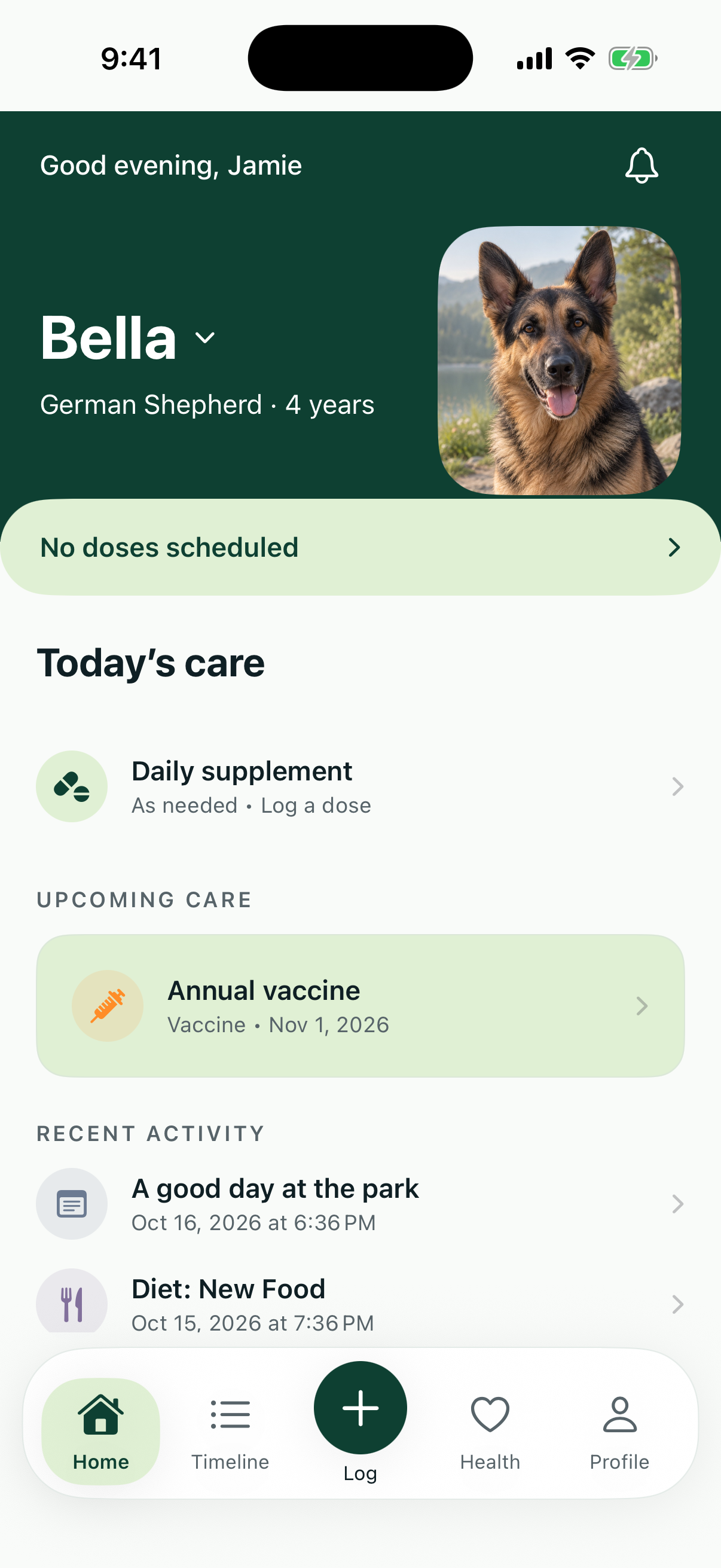
Home: Start with today.
A little less to remember. A little more time together.
Your pet, front and center
Tap the name or arrow to choose a pet. Their care and activity follow you across the app.
Today’s care
Open a scheduled dose to record Given or Skipped. For an as-needed medication, log a dose only when you give it.
A look ahead
Upcoming care keeps future items in view so you can see what is next.
The latest three moments
Recent activity brings the newest Timeline entries here. Save a log or record a medication action and this section updates.
Timeline: Follow their story.
The everyday observations and care you want to remember.
One pet’s history
Use the pet selector to see that pet’s records. Newest entries appear first.
Find what matters
Swipe the filter row to find Symptoms, Diet, Stool, Notes, or Medications. All brings everything back together.
Open the details
Tap a health log to read notes, check when it happened, and view attached photos or a video. The three-dot menu has the available edit and delete actions.
Care becomes history
Given and Skipped medication actions join health logs here. Future scheduled doses stay in the care schedule until an action is recorded.
Log: Notice it. Note it.
The center plus button is the start of a useful little record.
Choose the right pet
Check the pet selector before starting. Tap the close button if you want to return without creating a log.
Symptom
Choose a symptom, select Mild, Moderate, or Severe, and mark whether it is active. Choose Other to describe something in your own words.
Diet changes
Record a change in food or feeding here. Your pet’s ongoing food, portions, and feeding frequency live in Health.
Stool and everyday notes
Choose Stool for a digestive observation, or General Note for anything else you want in the history.
Add context, then save
In the form, adjust the date and time, add optional notes, and attach up to three photos or a mix with one video. Tap Save to add the record to Timeline and Home.
Health: The bigger picture.
A home for the care details that carry from one day to the next.
Pet and care overview
Check the selected pet and the summary of their current medications and recorded vaccines.
Medications
Open a medication for dosage, instructions, and schedule. Owners can add or edit it. Inactive and completed medications appear separately when present.
Conditions
Keep ongoing conditions current. Owners can add a condition and mark it inactive when it no longer belongs in the active list.
Active symptoms
Review current symptoms or tap Add to record one. Open the log to update its details or active status.
Their everyday diet
Scroll down to Diet. Owners can enter the food, amount per feeding, unit, times per day, and notes—for example, one cup twice a day.
Vaccinations
Below Diet, review recorded vaccines. Owners can tap Add, enter the vaccine name and date administered, and save it to the pet’s record.
Profile: Make room for everyone.
Your pets, your profile, and the way you like to use Tracks.
Your profile
Tap your name to view and edit your profile details, including your time zone.
My Pets
Select a pet to make them active. Tap the information icon for their details; owners can edit information and add or replace a headshot. Add Pet starts a new profile.
Caregivers and subscription
Open Caregivers to review shared access. Subscription opens the Tracks Plus preview.
Settings
Scroll down to Settings to choose appearance and turn local medication reminders on or off. Privacy information and Delete Account are also inside Settings.
Help and signing out
Help & Support contains FAQs and contact information. The contact is currently a placeholder. Sign Out is at the bottom of Profile.